PDF to Audiobook: How to Convert a PDF Into a Chapter-Aware Audiobook
Six real ways to turn a PDF into audio, from the free tools already on your computer to a full chapter-aware audiobook. Named tools, actual prices, and the honest tradeoffs of each route.
Any PDF with selectable text can be turned into audio, and you have at least four distinct routes: the screen reader already on your device, read-aloud apps that speak the file in real time, free desktop converters that export MP3s, and dedicated converters that produce a chapter-aware audiobook. Which one is right depends almost entirely on length. Everything on this page works fine for a ten-page report; only the last route still works at hour six of a textbook.
This guide walks through each route with named tools and real prices, then covers the two things that block conversion entirely (scanned pages and tables) and how to choose. If you mainly want to know which app reads PDFs aloud for free, how to listen to a PDF covers the real-time readers in more depth; this page is about getting a PDF into a durable, listenable audio form.
Two different things get called "PDF to audiobook"
The phrase covers two processes that behave nothing alike, and knowing which you want saves hours of trial and error.
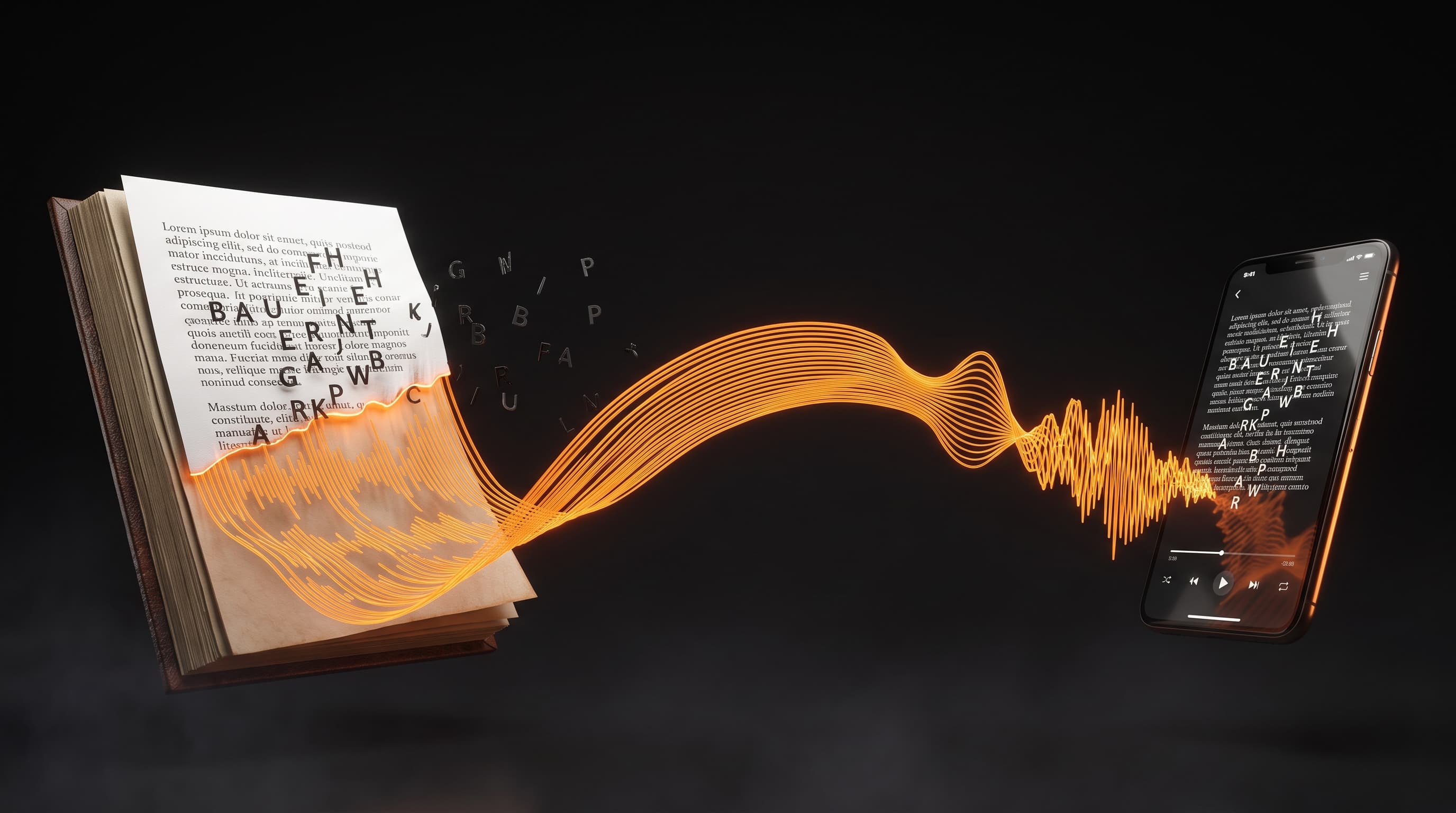
Real-time text-to-speech means an app reads the PDF aloud while you sit there, the way a screen reader does. Nothing is produced. Close the app and the audio stops existing; come back tomorrow and you are fumbling for your position. Conversion means software processes the PDF once and generates audio files you keep: chapters, downloads, playback with the screen off, position remembered across devices.
For short documents the distinction does not matter. For a 300-page textbook it decides whether you finish, because the real-time approach treats a book as one endless page, and length is exactly what it handles worst: no chapter navigation, no resume, a table of contents narrated like prose.
Route 1: The free tools already on your devices
Before installing anything, your existing devices can read a PDF aloud:
- Windows: open the PDF in Microsoft Edge and use "Read aloud" from the toolbar. Genuinely decent voices for a built-in, and it handles long files without choking.
- Mac: System Settings, Accessibility, Spoken Content, then select text and press Option-Escape.
- iPhone/iPad: Settings, Accessibility, Spoken Content, enable "Speak Screen," then swipe down with two fingers on the open PDF.
- Android: Settings, Accessibility, "Select to Speak."
These cost nothing and work in the next two minutes, which makes them the correct answer for a memo, a form, or anything you need to hear exactly once. The tradeoffs compound with length: they read headers, footers, and page numbers where they appear, they do not remember your position, and the voices wear on you past the first fifteen minutes. As a conversion route it fails outright, since nothing is produced. It is listening, not converting.
Route 2: Read-aloud apps
One step up is a dedicated app with better voices, speed control, and word highlighting. The main options as of late 2026:
- Speechify — the best-known name, polished apps, celebrity-voice marketing. Free tier is limited; the premium voices sit behind a subscription that has crept upward over the years (historically $139/year, frequently re-priced and heavily promoted at discounts). Great for articles and web pages; on a long PDF it inherits the one-long-page problem.
- NaturalReader — long-running, quieter interface, similar model: free tier for light use, paid plans for better voices. Its PDF handling is solid for mid-length documents.
- @Voice Aloud Reader (Android) — unpolished but respected, reads almost any format including PDFs, and can export audio files for a one-time payment rather than a subscription. The strongest cheap option on Android if you can live with the interface.
- Speech Central (iOS/Mac/Windows) — one-time-purchase or cheap-license model, handles documents and web reading, and is often the best value in this category for Apple-device users.
This category is genuinely good for articles, blog posts, and short PDFs, and free tiers cover light use. Where every tool in it hits the same wall: they treat the PDF as a single string of text. The table of contents gets read aloud, chapter breaks do not exist, and a 300-page file becomes nine unbroken hours of audio with no way to jump anywhere. If the PDF is book-shaped, these apps are the wrong shape for it.
Route 3: Free desktop conversion (Windows especially)
If you want actual audio files and a zero budget, the veteran answer is Balabolka, a free Windows program that has been converting documents to audio files since before "text to speech" was a marketing category. It opens PDFs directly, uses the voices installed in Windows (and any SAPI voices you have added, including the modern neural ones Microsoft ships), and exports MP3 or WAV files you own outright. No account, no watermark, no subscription.
The catch is what "free" buys you. You get whatever voices are installed on your machine, chapter structure comes only from manual splitting by bookmarks or time, and the output sounds like what it is: a utility narrating a document. For lecture notes or a report you want as an MP3 for the gym, it is a legitimately good tool. For a book you will spend twenty hours inside, voice quality and navigation are the whole experience, and Balabolka does not provide either at a high level. Mac users have no exact equivalent; the closest is scripting the built-in say command, which works but produces robotic output not fit for long listening.
Route 4: Do it yourself with cloud TTS
A technical route most guides skip: the same AI voices commercial tools use are available directly from Google Cloud Text-to-Speech, Amazon Polly, Microsoft Azure Speech, and ElevenLabs, with free tiers and per-character pricing (ElevenLabs from $5/month, Google and AWS with monthly free allowances). The workflow is extract the PDF text (pdftotext, or a small script with a PDF library), clean the headers and page numbers, chunk it, call the API, and stitch the output.
Done well, this produces the best audio quality per dollar available, and you control everything. Done once on a 300-page book, it is a weekend project: text extraction mangles reading order in two-column PDFs, chunk boundaries create audible seams, and nothing tracks chapters unless you build it. This route makes sense if you are comfortable in a terminal and converting things regularly. If you are converting one book and want to listen to it, your evening is worth more than the difference.
Route 5: Chapter-aware conversion, the actual audiobook
The last route exists because of the gap every route above leaves open on long, structured PDFs: purpose-built converters that map the document before narrating it. Audionarrator, the tool behind this site, is the one we know best, so take that bias as given and judge the fit for yourself.
The part that matters happens before any narration. The parser works out where the chapters are, what is front matter, what is an appendix, and keeps the table of contents, copyright page, and index out of playback. That sounds like a small thing until you have listened to a screen reader announce page numbers for an hour. You pick a voice, hear chapter 1 within a few minutes, and can decide from that single chapter whether the whole approach works for your book, which is free at any length up to 15,000 words. If it works, the rest generates in the background, and for a textbook you can convert only the assigned chapters rather than paying to narrate the other thirty-six.
What you end up with behaves like an audiobook you bought: it remembers where you stopped on any device, it plays with the screen off, and each chapter comes as an MP3 or WAV for a phone that never opens the app. The tradeoffs, honestly: a full book costs money ($3 one-time packs at the bottom end, subscriptions from $9/month), tables are skipped rather than read, scanned PDFs are flagged rather than processed, and the voice is a good synthetic one, not a human performance.
When this route beats the free ones: the PDF is book-length, you will listen across more than a couple of sittings, and chapters and resume matter. When it does not: short documents and one-off listens, where Route 1 already does the job at zero cost.
One more use worth naming: PDF listening generally, not just one-off conversion. Converted chapters are the practical way to get through dense reading while walking, commuting, or doing chores, and listening in chapter-sized sessions with a moment of recall at each boundary is what separates people who retain audio from people who replay the same chapter three times.
The PDFs that will not convert, on any route
Two failure modes, both detectable before you waste time.
Scanned PDFs. A photocopy or scan is an image, not text, and nothing can narrate pixels. The thirty-second test: try to select a sentence in the PDF. If the text highlights, any route above works. If you can only select the whole page as an image, the file needs OCR (optical character recognition) first. Serious converters detect this at upload and say so; read-aloud apps will simply narrate nothing, or gibberish.
Table-heavy pages. No TTS tool narrates tables well, and the honest ones skip them, because a spreadsheet read row by row is noise pretending to be knowledge. If your PDF is mostly tables, audio alone will not carry it. Some converters, Audionarrator included, detect the pages holding figures and equations and surface them as source pages beside the audio, so the workable pattern for math-dense material is audio for the concept pass and a glance at the surfaced page for the formulas.
Choosing between the routes
A compressed comparison, cheapest first:
- Built-in screen readers — free, instant, no output, no position memory. Right for one-off short documents.
- Read-aloud apps (Speechify, NaturalReader, @Voice, Speech Central) — free tiers to ~$140/year, good voices, real-time only, no chapter structure. Right for articles and short PDFs.
- Balabolka — free, produces MP3 files, utility-grade voices, no real chapter structure. Right for Windows users who want files on a zero budget.
- DIY cloud TTS (Google, AWS, Azure, ElevenLabs) — the best quality per dollar if you can script; a weekend project for a single book. Right for technical users converting regularly.
- Chapter-aware conversion (Audionarrator) — free first chapter, then $3 one-time packs up to subscription plans; produces a navigable audiobook with chapters, resume, and downloads. Right for book-length PDFs you will live with for weeks.
One related decision: if you have the same book as an EPUB, upload the EPUB. Its built-in chapter structure makes conversion more reliable than inferring structure from a PDF; the EPUB-to-audiobook route is covered separately.
Common questions
Can I turn a PDF into an audiobook for free?
For trying it out, yes: Audionarrator converts the first chapter of any book free, at any length up to 15,000 words, and accounts include a small monthly free word allowance after that, so you can hear a real chapter of your actual PDF before paying anything. Entirely free routes also exist and are covered above: the screen reader on your device for short documents, and Balabolka on Windows for free MP3 files. What no tool does is convert a full book with modern AI voices for free, because hours of generated audio cost real compute; Audionarrator's cheapest paid step is a $3 one-time word pack rather than a subscription.
How long does it take to convert a PDF to audio?
With a dedicated converter, about a minute for chapter detection and a few minutes per chapter of audio, with chapters playable as they finish, so a full book is usually ready within an hour. Balabolka converts in minutes but only as fast as your machine can synthesize. The DIY cloud route takes as long as the scripting takes, which is the real cost.
Will it read the table of contents and page numbers out loud?
The built-in readers and read-aloud apps will, because they narrate the page as-is. Chapter-aware converters classify front matter and page furniture out of playback before generating audio, so playback starts at chapter 1.
Can I listen offline?
Only routes that produce files. Balabolka, DIY cloud TTS, and Audionarrator (per-chapter MP3 or WAV downloads) all produce audio you keep; read-aloud apps stream in real time and leave nothing behind.
What about DOCX or Word documents?
Everything on this page except some of the phone screen readers handles DOCX too, and DOCX files usually carry cleaner structure than PDFs. If your source is a Word document, upload it directly rather than exporting to PDF first.
Is converting a PDF to audio legal?
For documents you own or were licensed to use, converting text to speech for your own listening sits in the same category as reading it aloud to yourself or using a screen reader. It is not: processing files you have no rights to use, or redistributing the generated audio. Keep the output for your own ears.